Par
Justin Wong
—
Comment ajouter des sources à la bibliothèque Jenni AI : Zotero, Mendeley, BibTeX, RIS, DOI, PDF

Justin Wong
Responsable du développement
Diplômé d'un baccalauréat en affaires mondiales et arts numériques, avec une mineure en entrepreneuriat
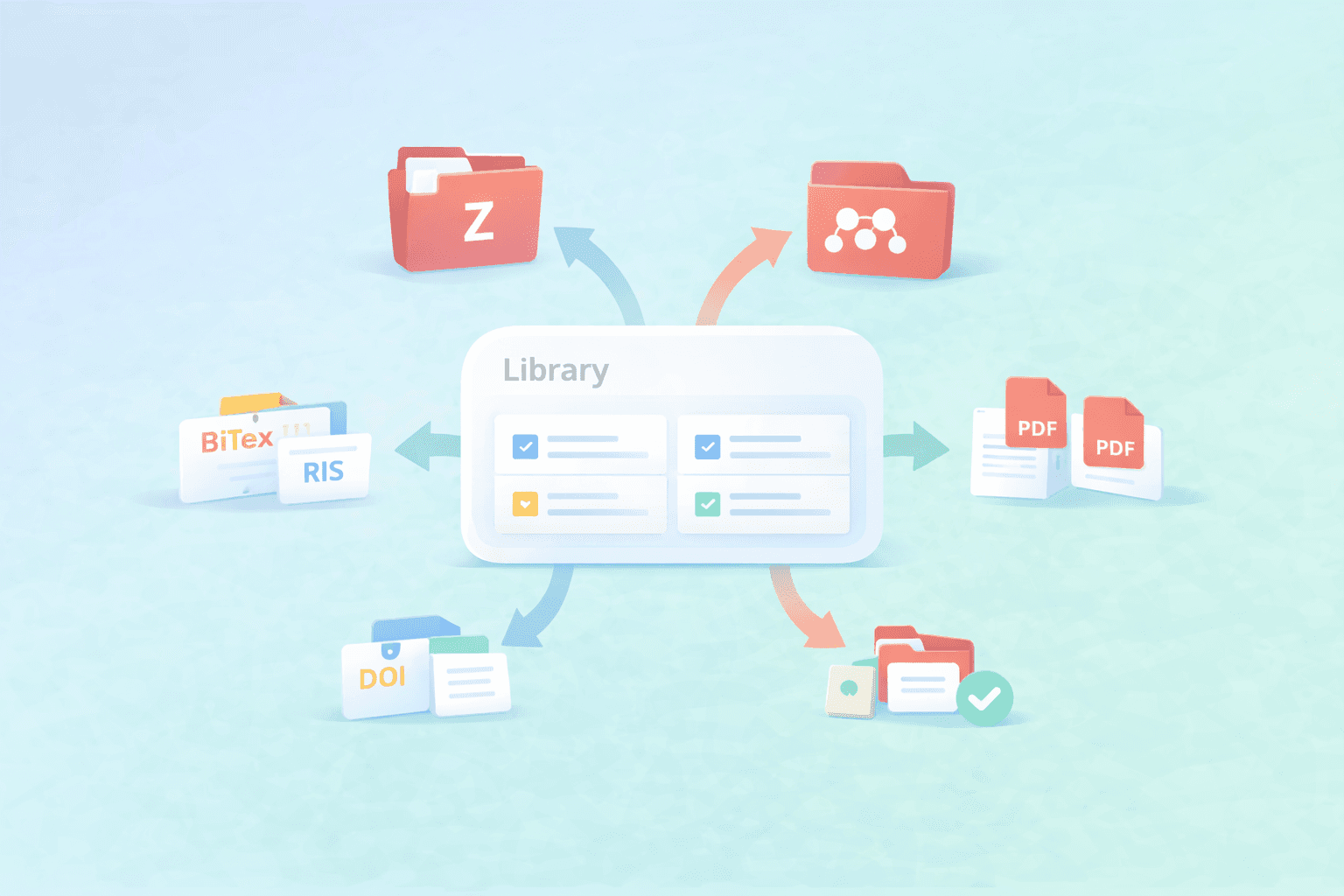
Les sources viennent de partout. Certaines se trouvent dans Zotero, d'autres dans Mendeley, d'autres arrivent sous forme d'exports BibTeX ou RIS, et parfois tout ce que vous avez, c'est un DOI ou un PDF. Ce mélange est normal, mais il peut vite devenir compliqué si vous continuez à ajouter des sources sans chemin d'importation clair.
Ce guide vous aide à choisir la meilleure façon d'ajouter des sources à votre bibliothèque Jenni en fonction de ce que vous avez déjà, afin d'éviter des métadonnées désordonnées, de réduire les imports remplis de doublons et de garder vos références plus faciles à utiliser pendant l'écriture.
<CTA title="Ajoutez vos sources à la bibliothèque Jenni" description="Importez votre bibliothèque ou téléversez quelques fichiers pour que vos références soient prêtes pendant que vous écrivez." buttonLabel="Commencer l'importation des sources" link="https://app.jenni.ai/register" />
Commencez ici : choisissez la meilleure méthode d'importation selon ce que vous avez déjà
La façon la plus simple de garder votre bibliothèque Jenni propre est de commencer par la méthode d'importation qui correspond au format dans lequel vos sources existent déjà. Au lieu de tout faire passer par un seul chemin, choisissez l'option qui vous donne les métadonnées les plus propres avec le moins de nettoyage possible.
Tableau de sélection rapide
Ce que vous avez | Meilleure façon de l'ajouter | Pourquoi cette méthode fonctionne bien |
Une bibliothèque ou collection Zotero complète | Import Zotero | Idéal pour les collections organisées que vous gérez déjà |
Une bibliothèque ou un dossier Mendeley complet | Import Mendeley | Conserve votre flux de travail de dossiers existant |
Export de citations depuis une base de données ou un outil | Téléversement BibTeX ou RIS | Portable et généralement plus propre que les PDF |
Un seul lien ou une seule référence d'article | DOI | Rapide pour des ajouts ponctuels |
Quelques articles indépendants | Téléversement de PDF | Pratique pour des ajouts rapides, mais les métadonnées peuvent nécessiter une vérification |
<ProTip title="🧭 Note rapide :" description="Si vous voulez les métadonnées les plus propres avec le moins de nettoyage possible, commencez par importer depuis Zotero ou Mendeley avant d'essayer les téléversements de PDF." />
Si vous ne savez pas quel chemin utiliser, commencez par la méthode qui préserve le plus de structure de votre bibliothèque d'origine, puis utilisez DOI ou PDF plus tard pour des ajouts ponctuels.
Importez depuis Zotero ou Mendeley lorsque vous avez déjà une bibliothèque
Si vos sources sont déjà organisées dans un gestionnaire de références, importer depuis cette bibliothèque est généralement la façon la plus propre de les intégrer dans Jenni. Si vous souhaitez un aperçu des connexions disponibles avant de commencer, consultez Intégration Zotero et Mendeley pour les chercheurs — Jenni AI. Vous conservez davantage de votre structure existante et vous passez généralement moins de temps à corriger les métadonnées ensuite.
Import Zotero (idéal lorsque vos collections sont déjà organisées)
Choisissez l'import Zotero lorsque vos collections sont déjà regroupées de la manière dont vous les voulez pour un article, un projet ou une revue. C'est une excellente option lorsque vous souhaitez intégrer un ensemble ciblé de sources sans reconstruire votre configuration.
Ouvrez Bibliothèque dans Jenni.
Cliquez sur la flèche de téléversement.
Sélectionnez Zotero.
Connectez-vous.
Choisissez votre collection.
Téléversez et vérifiez que vos sources apparaissent.
Voici à quoi ressemble le flux d'import Zotero :
Pour le guide complet, consultez Intégration de Zotero avec Jenni AI
Import Mendeley (idéal lorsque votre flux de travail vit déjà dans Mendeley)
Choisissez l'import Mendeley lorsque vos dossiers sont déjà gérés dans Mendeley et que vous souhaitez conserver ce flux de travail intact. C'est le chemin le plus simple lorsque les sources de votre projet actuel s'y trouvent déjà.
Ouvrez Bibliothèque dans Jenni.
Cliquez sur la flèche de téléversement.
Sélectionnez Mendeley.
Connectez-vous.
Choisissez votre dossier de collection.
Téléversez et vérifiez que vos sources apparaissent.
Voici à quoi ressemble le flux d'import Mendeley :
Pour le guide complet, consultez Intégration de Mendeley avec Jenni AI
Si vous gardez déjà vos sources organisées dans Zotero ou Mendeley, commencez par là, puis utilisez d'autres méthodes d'import plus tard pour des ajouts ponctuels.
Utilisez BibTeX ou RIS lorsque vos sources proviennent d'exports
Si vos sources proviennent d'un export de base de données ou d'un autre outil, BibTeX ou RIS est généralement une façon propre de les intégrer dans Jenni. Ces formats sont conçus pour les données bibliographiques, ils transportent donc souvent des métadonnées plus structurées que le téléversement de PDF aléatoires un par un.
Quand BibTeX ou RIS est la meilleure option
Cette solution fonctionne le mieux lorsque vous transférez des données bibliographiques, et non lorsque vous synchronisez une bibliothèque complète de gestionnaire de références.
Passage depuis un autre outil
Export depuis une base de données
Réception de citations d'un collaborateur
Transfert d'un sous-ensemble de sources pour un seul projet
À vérifier avant de téléverser le fichier
Une vérification rapide ici vous fera gagner du temps plus tard, surtout si vous importez beaucoup de sources à la fois.
✅ La mise en forme des titres semble correcte
✅ Les auteurs sont présents
✅ L'année est correcte
✅ Les doublons évidents sont absents
✅ Le fichier correspond au périmètre du projet
<ProTip title="📌 À noter :" description="Vérifiez rapidement les titres, les auteurs et les années avant le téléversement. Un contrôle rapide des métadonnées maintenant vous évitera du nettoyage plus tard." />
Téléversez le fichier dans la bibliothèque Jenni
Vous n'avez pas besoin d'un flux de travail compliqué ici. Gardez les choses simples et vérifiez le résultat après le téléversement.
Exportez un fichier BibTeX ou RIS depuis votre base de données ou votre outil de référence.
Ouvrez Jenni Library
Cliquez sur téléverser
Sélectionnez BibTeX ou RIS
Téléversez le fichier, puis vérifiez que vos sources apparaissent dans votre bibliothèque.
Si quelque chose semble incorrect après l'importation, faites un rapide nettoyage des métadonnées avant de commencer à rédiger. Il est beaucoup plus facile de corriger les détails des sources tôt que de démêler des problèmes de citation plus tard.
Ajoutez un DOI ou téléversez des PDF pour des sources ponctuelles rapides
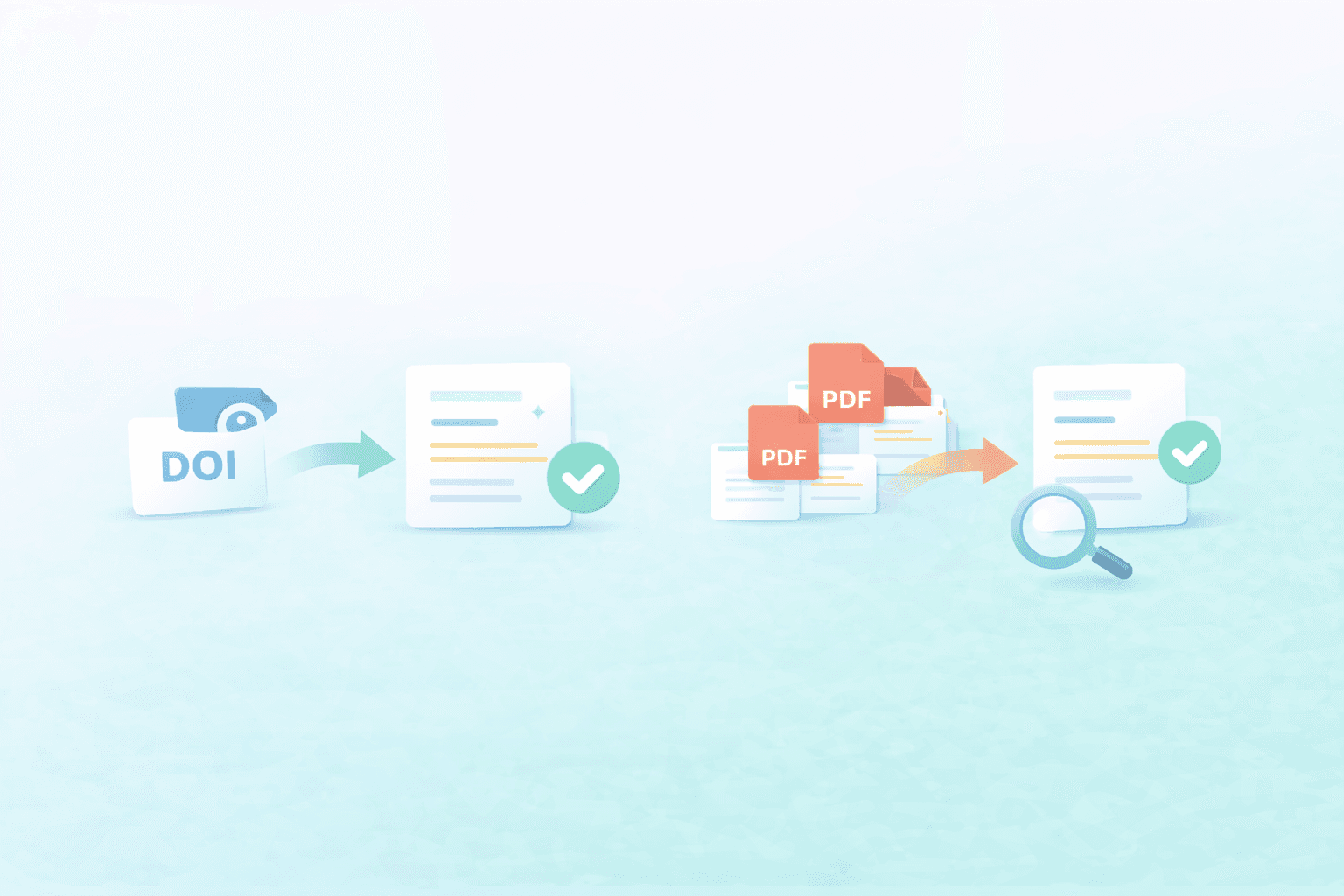
Toutes les sources n'ont pas besoin d'un import complet de bibliothèque. Parfois, il suffit d'ajouter rapidement un article ou d'intégrer quelques PDF pour le projet sur lequel vous travaillez en ce moment. C'est là que les téléversements par DOI et par PDF peuvent être utiles, à condition de faire une vérification rapide des métadonnées après l'importation.
Ajoutez un DOI lorsque vous n'avez besoin que d'un seul article rapidement
C'est une bonne option lorsque vous devez importer une seule source et que vous avez déjà le DOI. Si votre bibliothèque Jenni prend en charge l'ajout d'une source par DOI, cela peut être l'une des façons les plus rapides d'ajouter un article sans exporter d'abord un fichier.
Copiez le DOI
Ouvrez Jenni Library
Choisissez la méthode d'ajout par DOI
Collez le DOI
Vérifiez que les métadonnées sont correctes
Téléversez des PDF lorsque c'est ce que vous avez
Le téléversement de PDF fonctionne bien lorsque vous avez un petit lot d'articles ou quelques sources ponctuelles que vous souhaitez ajouter rapidement. C'est une solution de repli pratique lorsque vous n'avez pas encore de chemin Zotero, Mendeley, BibTeX ou RIS propre et prêt à l'emploi.
Gardez simplement à l'esprit que les métadonnées des PDF peuvent varier. Certains PDF s'importent proprement, tandis que d'autres nécessitent une correction rapide des titres, des auteurs ou des informations de publication.
✅ Téléversez d'abord par petits lots
✅ Utilisez des noms de fichiers clairs avant le téléversement
✅ Vérifiez les champs du titre et des auteurs après l'importation
✅ Corrigez tôt les problèmes évidents de métadonnées
<ProTip title="🗂️ Astuce rapide :" description="Téléversez d'abord les PDF par petits lots afin qu'il soit plus facile de repérer les problèmes de métadonnées avant que votre bibliothèque ne se remplisse." />
Gardez votre bibliothèque Jenni propre après l'importation pour continuer à citer facilement
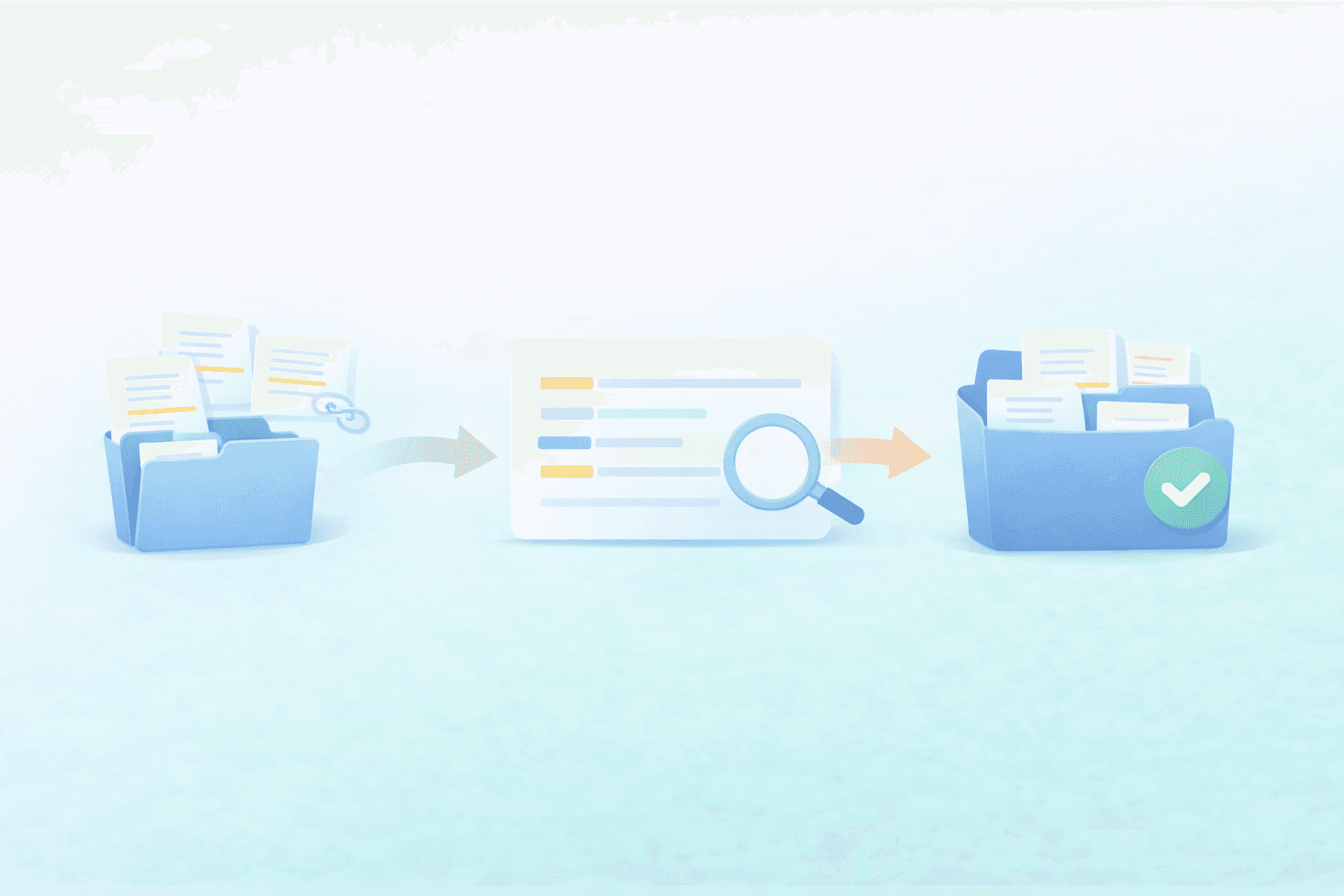
Importer des sources dans Jenni n'est que la moitié du travail. Le véritable avantage vient d'une bibliothèque suffisamment propre pour que vous puissiez trouver rapidement la bonne source, faire confiance à vos métadonnées et continuer à écrire sans vous arrêter pour tout nettoyer en plein brouillon.
Gardez des collections ciblées par projet
Une bibliothèque ciblée est plus facile à parcourir, plus facile à vérifier et bien plus simple à citer lorsque vous êtes plongé dans l'écriture. Au lieu de tout déposer en même temps, regroupez les sources autour de ce sur quoi vous travaillez activement.
Conservez une collection pour l'article, le devoir ou la revue en cours
N'ajoutez plus tard les sources anciennes ou sans rapport que si vous en avez réellement besoin
Faites un nettoyage rapide avant que votre bibliothèque ne soit encombrée
✅ Supprimez les doublons évidents avant qu'ils ne s'accumulent
✅ Vérifiez les titres, les auteurs et l'année des nouvelles sources ajoutées
✅ Renommez rapidement les PDF désordonnés pour les repérer plus facilement ensuite
✅ Retirez les sources non pertinentes qui n'appartiennent pas au projet en cours
✅ Vérifiez que les sources importées correspondent bien à ce sur quoi vous écrivez
Adoptez une habitude reproductible pour ajouter de nouvelles sources
Ajoutez les nouvelles sources par petits lots au lieu de tout déposer en même temps.
Faites un contrôle rapide des métadonnées juste après l'importation, pendant que les sources sont encore fraîches dans votre esprit.
Placez-les dans la bonne collection de projet avant de recommencer à rédiger.
<ProTip title="🧹 Astuce de nettoyage :" description="Gardez votre bibliothèque Jenni concentrée sur ce sur quoi vous écrivez activement. Les bibliothèques plus petites et plus propres sont plus faciles à citer." />
Si vous travaillez sur un projet riche en revues, cela se combine bien avec Comment organiser votre bibliothèque de recherche pour une revue systématique
Ajoutez des sources à votre façon, puis gardez votre bibliothèque propre
La meilleure méthode d'importation dépend de ce que vous avez déjà, qu'il s'agisse d'une bibliothèque Zotero ou Mendeley, d'un export BibTeX ou RIS, d'un DOI ou de quelques PDF. Commencez par le chemin le plus propre disponible, puis faites de rapides vérifications des métadonnées afin que vos sources soient plus faciles à citer pendant que vous écrivez.
<CTA title="Faites entrer vos sources dans Jenni, puis commencez à écrire" description="Ajoutez à Jenni un ensemble ciblé de sources afin que vos références restent organisées pendant que vous rédigez et révisez." buttonLabel="Synchroniser ma bibliothèque" link="https://app.jenni.ai/register" />
Commencez petit, avec une collection de projet, un fichier d'export ou quelques PDF. Une fois que votre bibliothèque semble propre dans Jenni, vous pouvez ajouter davantage de sources sans alourdir le flux de travail.